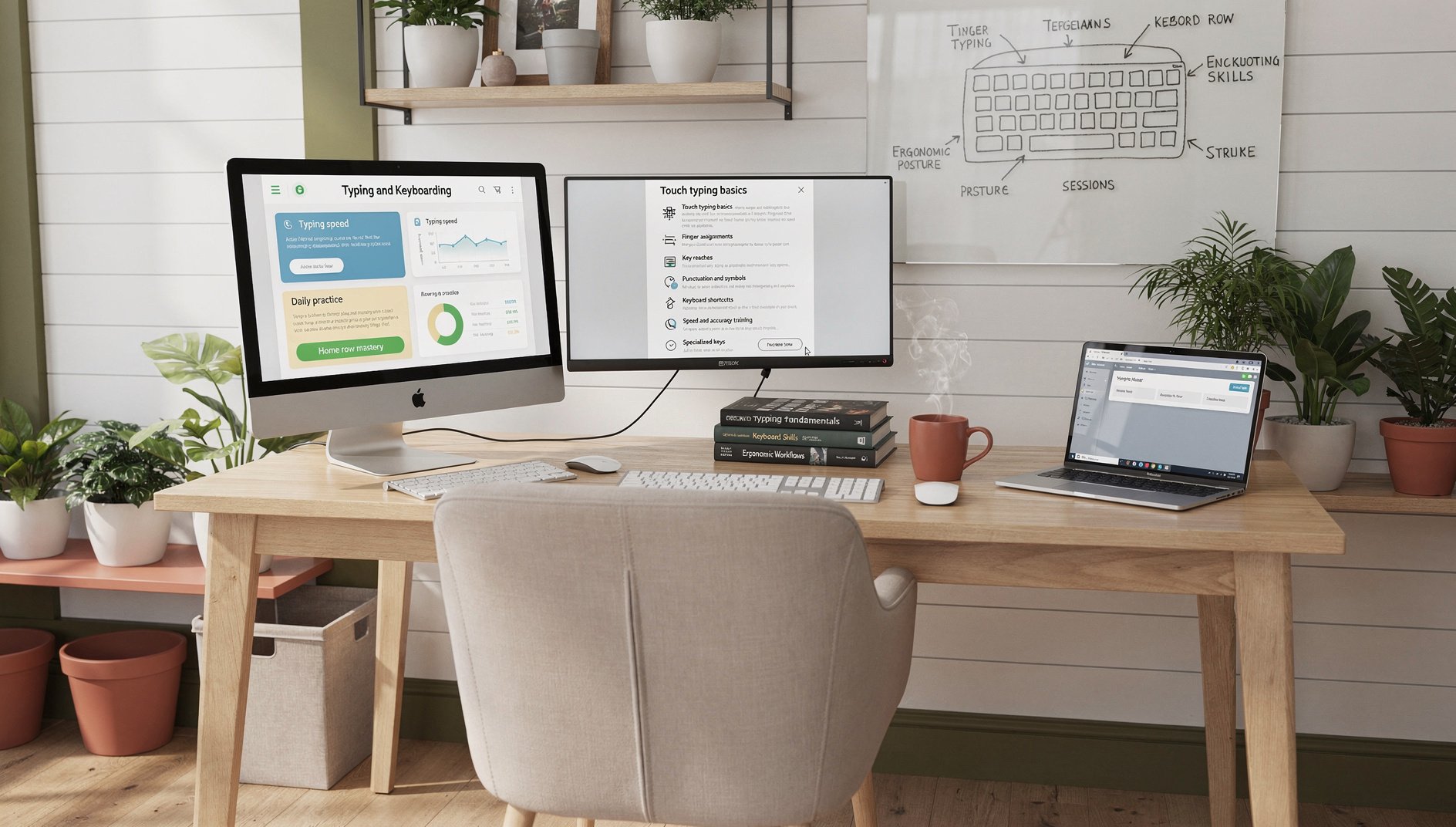
Typing and Keyboarding
The Typing and Keyboarding course builds touch typing skill from home row positioning through full keyboard mastery, covering finger assignments, key reaches, punctuation and symbols, keyboard shortcuts, speed and accuracy training, ergonomic posture, specialized keys, and coding-specific symbol fluency.
Who Should Take This
It is ideal for students, professionals, and anyone who uses a keyboard daily but types by hunting and pecking. No prior typing skill is required. Participants will develop correct technique, build speed progressively toward professional benchmarks, learn essential keyboard shortcuts, and adopt ergonomic habits that prevent injury over a lifetime of keyboard use.
What's Included in AccelaStudy® AI
Adaptive Knowledge Graph
Practice Questions
Lesson Modules
Console Simulator Labs
Exam Tips & Strategy
13 Activity Formats
Course Outline
1Home Row and Finger Placement 7 topics
Identify the home row keys (A S D F J K L ;) and explain why the index fingers rest on F and J (the bumped keys) as the anchor positions for all touch typing finger assignments
Apply correct finger-to-key assignments for the home row by mapping each finger of the left hand (pinky, ring, middle, index) to A, S, D, F and each finger of the right hand to J, K, L, ; respectively
Apply the return-to-home-row habit after every key reach by training each finger to automatically return to its assigned home key after striking any key on the top row, bottom row, or number row
Explain the purpose of touch typing as typing without looking at the keyboard and describe why developing muscle memory through consistent practice eliminates visual dependency on the keyboard over time
Analyze how a single incorrect finger assignment for a home row key creates compounding errors across the entire keyboard reach map and evaluate why fixing home-row form early is more efficient than correcting bad habits later
Apply the hover wrists technique by keeping wrists floating slightly above the keyboard surface during active typing and explain why resting wrists on the desk between bursts is acceptable but pressing wrists down while striking keys causes strain
Describe how the muscle memory formation process works for typing including the role of deliberate slow-speed practice in encoding motor patterns before attempting higher-speed repetition
2Key Reaches: Top, Bottom, and Number Rows 7 topics
Apply the correct finger assignments for the top row keys (Q W E R T Y U I O P) by extending each finger upward from its home row anchor to the corresponding top row key without shifting wrist position
Apply the correct finger assignments for the bottom row keys (Z X C V B N M , .) by curling each finger downward from its home row anchor to the corresponding bottom row key with minimal wrist movement
Apply number row key reaches (1 through 0) by stretching the correct finger upward from the top row and explain which finger is responsible for each number key including pinky coverage of 1 and 0
Apply the correct thumb technique for the spacebar by using the dominant thumb to strike the spacebar after each word and explain why using one thumb consistently prevents rhythm interruption
Analyze which key reaches are most frequently practiced incorrectly by new typists including T, Y, B, N, and number row keys and explain why these reaches are error-prone due to index finger crossing responsibilities
Apply minimal finger travel principles by keeping fingers close to the home row position and using the smallest viable movement for each key reach rather than lifting the entire hand away from the keyboard
Identify the Enter and Backspace key finger assignments and practice their consistent use with the right-hand pinky without looking down or repositioning the other fingers from their home-row anchors
3Punctuation, Symbols, and Shift 7 topics
Apply the Shift key technique by using the opposite hand's pinky to hold Shift while the other hand strikes the target key and explain why this two-hand coordination preserves typing rhythm better than same-hand shifting
Distinguish between Shift key usage (temporary uppercase or symbol) and Caps Lock usage (sustained uppercase) and identify when each is appropriate including why Caps Lock should generally be avoided in favor of Shift for single capitals
Apply correct finger assignments for common punctuation keys including period, comma, semicolon, colon, apostrophe, hyphen, and question mark using the right-hand pinky and ring finger reaches
Apply keyboard reach techniques for coding-relevant symbols including square brackets, curly braces, parentheses, forward slash, backslash, pipe character, tilde, backtick, and at sign using correct finger assignments
Identify which symbol characters require the Shift key on a standard US QWERTY keyboard including exclamation, at, hash, dollar, percent, caret, ampersand, asterisk, left and right parentheses, underscore, and plus sign
Apply smooth punctuation integration by practicing sentences that require frequent comma, period, and apostrophe use at speed without breaking typing rhythm or reducing accuracy
Apply number-symbol row alternation drills by practicing lines that mix prose with numbers and symbols such as invoice amounts, email addresses, and code snippets to build fluency across the full keyboard
4Keyboard Shortcuts 7 topics
Apply essential productivity shortcuts including Ctrl+C (copy), Ctrl+X (cut), Ctrl+V (paste), Ctrl+Z (undo), Ctrl+Y (redo), Ctrl+S (save), and Ctrl+A (select all) and explain how these shortcuts eliminate mouse dependency for common editing tasks
Apply window and navigation shortcuts including Alt+Tab (Windows) or Command+Tab (Mac) for application switching, Ctrl+W to close a tab, Ctrl+T to open a new tab, and Ctrl+F to find text within a document or webpage
Apply text navigation shortcuts including Ctrl+Home and Ctrl+End to jump to the start or end of a document, Ctrl+arrow to move word by word, and Home and End keys to move to the beginning or end of a line
Apply selection expansion shortcuts including Shift+arrow keys to select characters, Shift+Ctrl+arrow to select words, and Shift+Ctrl+End to select from cursor to end of document and explain how these shortcuts replace click-and-drag selection
Analyze how mastering 10 to 15 keyboard shortcuts eliminates repetitive mouse movements and quantify the estimated time savings per hour of typing work that shortcuts provide compared to mouse-only navigation
Apply print and zoom shortcuts including Ctrl+P to print, Ctrl+Plus and Ctrl+Minus to zoom in and out in a browser or document, and Ctrl+0 to reset zoom to default and explain when these shortcuts are most useful
Identify the system-level shortcuts for locking the screen (Win+L on Windows, Command+Ctrl+Q on Mac) and taking a screenshot and explain when locking the screen is an important workplace security habit
5Building Speed and Accuracy 8 topics
Explain the relationship between accuracy and speed in typing development and describe why training for accuracy first and allowing speed to follow naturally through repetition produces better long-term WPM than rushing
Apply a progressive WPM training plan by starting at a comfortable accuracy threshold such as 95 percent and gradually increasing practice difficulty as target speed milestones of 20, 30, 40, and 50 WPM are reached
Apply drill practice techniques for weak key combinations by isolating and repeating high-error reaches in focused 5-minute drills before returning to full sentence or paragraph typing practice
Describe how to use online typing test tools such as Keybr, TypeRacer, and Monkeytype to measure current WPM and accuracy, track progress over time, and identify which specific keys are slowing performance
Apply error correction strategies including pressing Backspace immediately on a mistake rather than continuing, pausing briefly to reset finger position after a cluster of errors, and avoiding the habit of looking down at the keyboard after an error
Analyze the motor learning curve for typing skill acquisition and explain why consistent daily practice of 15 to 30 minutes outperforms infrequent multi-hour sessions in building durable speed improvements
Apply speed burst training by typing familiar common words (the, and, that, have, with) at maximum speed in short 30-second sprints and explain how high-frequency word automaticity disproportionately raises overall WPM
Describe the role of rhythm and flow in advanced typing by explaining how consistent keystroke timing intervals rather than burst-and-pause patterns produce higher sustained WPM and lower error rates in extended typing
6Ergonomics and Injury Prevention 7 topics
Describe the correct ergonomic typing posture including feet flat on the floor, knees at 90 degrees, elbows at desk level, wrists straight and floating above the keyboard, screen at eye height, and back supported
Explain the difference between floating wrists during active typing and resting wrists on a palm rest only during pauses and describe why resting on the wrist while typing compresses the carpal tunnel and increases RSI risk
Apply a daily finger and wrist stretching routine including wrist circles, finger extensions, prayer stretch, and prayer reverse stretch to prevent repetitive strain injury from extended typing sessions
Identify early warning signs of repetitive strain injury (RSI) and carpal tunnel syndrome including tingling in the fingers, wrist pain after typing, and weakened grip strength and describe when to seek medical advice
Analyze how poor posture choices such as hunching forward, typing with elevated shoulders, or propping a laptop on a lap without an external keyboard increase injury risk and evaluate simple workspace adjustments that mitigate each risk
Apply the 20-20-20 rule to prevent eye strain during typing by looking at an object 20 feet away for 20 seconds every 20 minutes and explain why prolonged near-focus tasks fatigue the ciliary muscles
Describe the ergonomic benefits of a split keyboard, a tenting accessory, and a negative-tilt keyboard stand and explain when these accessories are recommended for typists experiencing early wrist or shoulder discomfort
7Specialized Keys and Keyboard Variants 7 topics
Identify the function keys (F1 through F12) and describe their common default behaviors including F1 for help, F2 for rename, F5 for refresh, F11 for full screen, and F12 for developer tools in a browser
Apply the numeric keypad to enter numerical data quickly including activating Num Lock, identifying the 0 through 9 layout, and using the Enter, plus, minus, multiply, and divide keys for basic data entry tasks
Explain the functional differences between Delete and Backspace keys, between Insert and Overwrite mode, and between Page Up and Page Down versus Ctrl+Home and Ctrl+End for document navigation
Describe how a laptop keyboard differs from a full-size external keyboard including the absence of a dedicated numpad, compressed key spacing, function key layer switching with Fn key, and common trade-offs for travel use
Describe the most common international keyboard layouts including QWERTY (US, UK), AZERTY (French), and QWERTZ (German) and explain how switching to a different layout affects the location of common letters, symbols, and punctuation
Apply the Print Screen key and snipping tool on Windows or the screenshot tools on macOS to capture, crop, annotate, and save screen content and explain common use cases including documentation, bug reporting, and sharing instructions
Describe how to switch the operating system input language and keyboard layout when typing in a second language and explain the difference between changing the display language and changing only the keyboard input method
8Coding Keys and Progress Measurement 10 topics
Apply precise reach techniques for programming-critical keys including the backtick, tilde, pipe, backslash, square brackets, curly braces, angle brackets, and semicolon using correct finger assignments without looking at the keyboard
Describe how words per minute (WPM) and accuracy percentage are calculated in typing tests including the definition of a standard word as five characters and how a single error affects both raw and net WPM scores
Apply a weekly typing progress log by recording WPM and accuracy scores from timed tests, graphing improvement over four or more weeks, and identifying which key zones still require focused drill practice
Analyze a typing test result showing high error rates on specific key reaches and design a targeted 2-week drill plan that addresses the identified weak zones through isolated repetition before returning to mixed practice
Evaluate realistic WPM benchmarks for different skill levels and contexts including casual use (30-40 WPM), professional office work (50-70 WPM), transcription (80+ WPM), and competitive typing and explain what practice investment each level requires
Apply code-typing drills by practicing common code patterns including function declarations, if-else blocks, and JSON structures to build fluency with curly braces, colons, semicolons, and indentation characters
Describe how typing speed interacts with cognitive fluency during programming and writing tasks by explaining that faster accurate typing reduces working memory load and allows more cognitive resources for problem-solving and content creation
Apply touch-typing fluency to common command-line patterns including cd, ls, git commit, and pip install by practicing these specific character sequences until they can be typed without looking at the keyboard
Evaluate a set of typing test results taken weekly over one month and analyze whether WPM growth is plateauing, accelerating, or declining and identify what practice changes are indicated by the trend
Describe how voice typing and dictation tools complement rather than replace keyboard fluency and identify scenarios where each input method is most efficient including long-form writing versus code editing versus form filling
Scope
Included Topics
- Home row key positioning (ASDF JKL;), touch typing technique and finger assignments, left-hand and right-hand key zones, common keys and reaches (top row, bottom row, number row), symbols and punctuation placement, shift key and Caps Lock usage, keyboard shortcuts (copy, paste, cut, undo, redo, save, select all, switch windows, screenshot), accuracy vs speed trade-off in training, building speed progressively with WPM targets, common error correction habits, ergonomic posture for typing (wrist position, screen height, chair posture), wrist and finger care (stretching, breaks, RSI awareness), specialized keys (function keys, numpad, Delete/Backspace, Page Up/Down, arrow keys), laptop versus external keyboard differences, introduction to international keyboard layouts (QWERTY, AZERTY, QWERTZ awareness), coding-specific keys (brackets, curly braces, pipe, tilde, backtick, semicolon), measuring progress with WPM and accuracy tests
Not Covered
- Stenography or court reporting shorthand systems
- Advanced transcription or medical/legal dictation
- Programming syntax and code writing (covered in Programming domain)
- Hardware keyboard repair or switch customization beyond awareness
- Gaming peripherals and macro programming
Ready to master Typing and Keyboarding?
Adaptive learning that maps your knowledge and closes your gaps.
Enroll