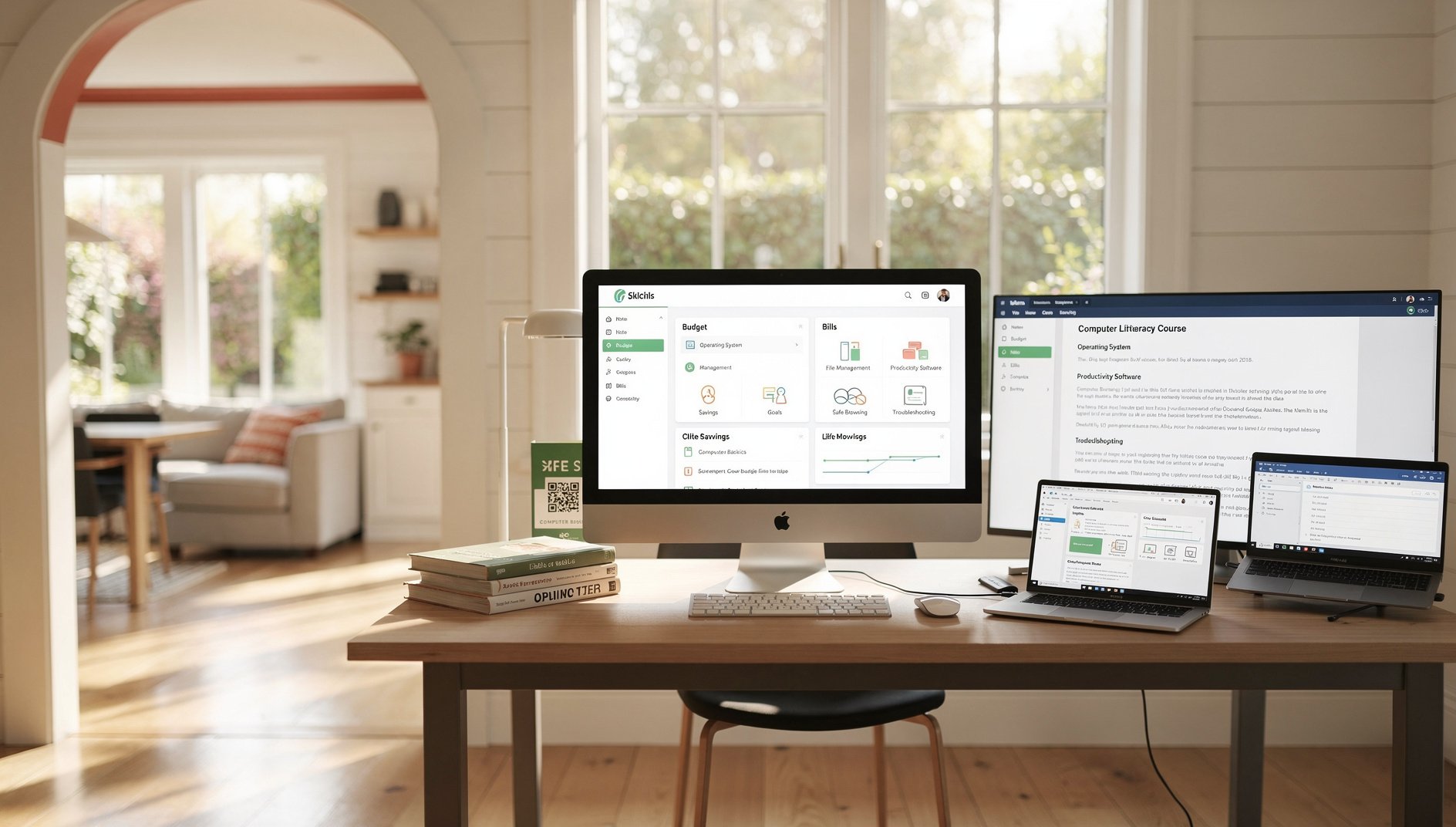
Computer Literacy
The Computer Literacy course teaches absolute beginners how computers work, how to navigate an operating system, manage files, use essential productivity software, browse the web safely, troubleshoot common issues, and protect themselves online — no prior experience required.
Who Should Take This
It is ideal for middle school students, adults returning to the workforce, seniors new to computers, and anyone who needs a confident foundation in everyday computing. No prior technical knowledge is assumed. Participants will finish able to independently use a computer for school, work, and personal tasks with competence and safety.
What's Covered
1Computer Hardware Basics
2Operating System Navigation
3File Management
4Keyboard and Mouse Skills
5Productivity Software
6Web Browsers and Search
7Troubleshooting and Software
8Digital Citizenship and Safety
9Networks and Connectivity
What's Included in AccelaStudy® AI
Adaptive Knowledge Graph
Practice Questions
Lesson Modules
Console Simulator Labs
Exam Tips & Strategy
13 Activity Formats
Course Outline
1Computer Hardware Basics 7 topics
Identify the main hardware components of a computer system including the CPU, RAM, hard drive or SSD, motherboard, power supply, monitor, keyboard, and mouse and describe the basic function of each part
Distinguish between RAM (temporary working memory) and storage (hard drive or SSD) and explain why having more RAM helps a computer run multiple programs simultaneously without slowing down
Identify common input and output ports and devices including USB-A, USB-C, HDMI, headphone jack, and SD card slot and explain the purpose of each connection type for everyday tasks
Compare desktop, laptop, tablet, and Chromebook form factors including their typical use cases, portability trade-offs, and hardware limitations relevant to an everyday home or school user
Explain how to safely power on and shut down a computer including the difference between sleep, hibernate, restart, and full shutdown and when each is the appropriate action
Analyze a scenario where a computer is running slowly and determine whether the likely cause is low RAM, a full storage drive, too many background programs, or malware and suggest a practical first step for each
Describe how to connect a computer to an external display including identifying the correct cable or adapter for HDMI, DisplayPort, or USB-C connections and configuring mirror versus extended display mode in system settings
2Operating System Navigation 7 topics
Describe what an operating system does including managing hardware resources, providing a user interface, running applications, and handling file storage and retrieval for Windows, macOS, and Chrome OS
Apply basic desktop navigation skills including opening and closing applications, using the taskbar or dock, switching between open windows, and locating installed programs through the Start menu or Applications folder
Apply system settings navigation to change display brightness, adjust sound volume, connect to a Wi-Fi network, update passwords, and check for and install operating system updates
Apply window management techniques including resizing, minimizing, maximizing, snapping windows side by side, and using virtual desktops or multiple spaces to organize open applications
Explain the importance of keeping an operating system updated and describe how automatic updates protect against security vulnerabilities, fix bugs, and improve hardware compatibility
Apply the Task Manager (Windows) or Activity Monitor (Mac) to identify applications consuming excessive CPU or memory, force-quit a frozen program, and check available disk space
Describe how to add and manage user accounts on a shared computer including creating a standard versus administrator account and explain why using a standard account for daily use improves security
3File Management 7 topics
Describe the hierarchical file system structure including drives, folders, subfolders, and files and explain how file paths such as C:\Users\Name\Documents\Report.docx represent a file's location
Apply file management operations including creating new folders, renaming files and folders with descriptive names, moving and copying files between folders, and sending files to the Recycle Bin or Trash
Identify common file formats including .docx (Word), .pdf (read-only document), .xlsx (spreadsheet), .jpg and .png (images), .mp3 (audio), .mp4 (video), and .zip (compressed archive) and explain when each format is appropriate
Apply file search tools within the operating system to locate a file by name or type when the file location has been forgotten using the search bar in File Explorer or Finder
Analyze the importance of a logical folder organization system and evaluate naming conventions such as date-prefixing, version numbering, and project-based folders for keeping personal files retrievable
Apply basic file compression and extraction operations including right-clicking to create a ZIP archive, downloading and extracting a ZIP file, and explaining why compressed archives reduce file size for easier sharing
Describe best practices for backing up important files including using the 3-2-1 backup rule (three copies, two media types, one offsite or cloud) and explain why relying on a single device risks permanent data loss
4Keyboard and Mouse Skills 6 topics
Apply essential keyboard shortcuts including Ctrl+C (copy), Ctrl+X (cut), Ctrl+V (paste), Ctrl+Z (undo), Ctrl+Y (redo), Ctrl+S (save), Ctrl+A (select all), and Ctrl+F (find) on Windows or their Command-key equivalents on macOS
Apply window and application shortcuts including Alt+Tab (Windows) or Command+Tab (Mac) to switch between open applications, and Win+D or Mission Control to show the desktop
Apply mouse techniques including single-click, double-click, right-click context menus, click-and-drag for moving items, and scroll wheel use for navigating long documents and web pages
Apply text selection techniques including click-and-drag, Shift+arrow keys, Shift+click, and triple-click to select a line and explain how to efficiently edit selected text using keyboard shortcuts
Apply screenshot capture techniques including full-screen capture, partial region capture, and window-only capture using keyboard shortcuts on Windows and macOS and explain common use cases for sharing or documenting screen content
Describe the purpose of common special keys including Tab for indentation and form field navigation, Enter for confirming actions, Escape for canceling dialogs, and Delete versus Backspace for removing text
5Productivity Software 6 topics
Apply word processor basics including creating a new document, typing and formatting text (bold, italic, font size, alignment), inserting images, saving in multiple file formats, and printing a document
Apply spreadsheet basics including entering data into cells, using basic formulas (SUM, AVERAGE, COUNT), formatting cells, and creating a simple bar or pie chart from a data range
Apply presentation software basics including creating slides, adding text and images, applying a consistent theme, using speaker notes, and presenting in slideshow mode with keyboard navigation
Apply email client basics including composing a new message, using To, Cc, and Bcc fields correctly, attaching a file, replying versus reply-all, organizing messages with folders, and recognizing phishing attempts
Analyze when to use a word processor versus a spreadsheet versus a presentation tool given a task type such as writing a report, tracking expenses, or delivering a classroom presentation
Apply cloud collaboration features in Google Workspace or Microsoft 365 including sharing a document with view or edit permissions, adding comments, and working simultaneously with another person on the same file
6Web Browsers and Search 7 topics
Apply web browser fundamentals including entering URLs in the address bar, opening and managing multiple tabs, using back and forward navigation, refreshing a page, and bookmarking frequently visited sites
Apply effective search strategies including using specific keywords, quotation marks for exact phrases, site: operator for domain-limited searches, and evaluating whether a source is credible before using it
Explain the purpose of private or incognito browsing mode including what data it does and does not protect and describe when it is and is not an appropriate privacy tool
Apply cloud storage operations including uploading a file to Google Drive or OneDrive, creating and organizing folders, generating a shareable link, and syncing files between a local device and the cloud
Analyze the difference between a URL, a search engine result, and a direct website address and evaluate indicators of a trustworthy website including HTTPS, recognizable domain, current content, and author credentials
Apply browser history, cache, and cookie management by clearing browsing data, explaining what each data type stores, and deciding when clearing history or cookies is appropriate for privacy or troubleshooting purposes
Apply strategies for downloading files safely from the internet including verifying the file type matches expectations, checking the file size, scanning with antivirus before opening, and identifying suspicious download pop-up redirects
7Troubleshooting and Software 7 topics
Apply a basic troubleshooting methodology including identifying the specific symptom, checking if the problem is reproducible, attempting a restart, searching for the error message online, and knowing when to escalate
Apply steps to resolve common issues including a frozen application (force quit), no sound (check muted status and output device), printer not found (check connection and default printer), and no internet (restart router and check Wi-Fi settings)
Apply software installation steps including downloading from official sources, running the installer, accepting license terms, choosing installation location, and verifying the application launches correctly after installation
Explain the risks of downloading software from unofficial sources including malware, adware, and fake updates and describe how to verify that a download source is the official developer or publisher website
Analyze a technology problem described in plain language and determine a logical sequence of diagnostic steps to isolate whether the issue is hardware, software, network, or user error
Apply uninstall procedures to remove unwanted software completely including using the Add or Remove Programs tool (Windows) or dragging to Trash (Mac) and explain why deleting a shortcut does not uninstall the underlying program
Describe how to use the built-in help system of an operating system or application including using the Help menu, pressing F1, searching the knowledge base, and identifying when to escalate a problem to technical support
8Digital Citizenship and Safety 7 topics
Apply password security best practices including creating strong passwords with mixed characters, using unique passwords for each account, and using a password manager to securely store credentials
Identify characteristics of phishing emails and fraudulent websites including unexpected sender addresses, urgency language, mismatched URLs, requests for personal information, and suspicious attachments
Explain basic digital copyright principles including what it means for content to be copyrighted, when fair use applies, and how to find and correctly attribute Creative Commons licensed images, text, and media
Describe basic accessibility features built into modern operating systems including screen magnifier, high-contrast display mode, closed captions, text-to-speech, and voice input and identify which users benefit most from each
Analyze a given online scenario involving shared personal information, suspicious links, or public Wi-Fi use and evaluate the privacy and security risks and appropriate protective actions
Apply two-factor authentication (2FA) to accounts that support it and explain how requiring a second verification step such as an SMS code or authenticator app dramatically reduces the impact of a stolen password
Identify cyberbullying behaviors including harassment, impersonation, and sharing of private images online and describe appropriate responses including blocking, reporting to platform moderators, and telling a trusted adult
9Networks and Connectivity 6 topics
Describe the difference between Wi-Fi and wired Ethernet connections in terms of speed, reliability, and typical use cases and explain when each connection type is preferred for home and school use
Apply the steps to connect a device to a Wi-Fi network including selecting the network SSID from the list of available networks, entering the password, and verifying the connection is active
Explain how Bluetooth works at a user level including pairing a device, the typical range, common device types (headphones, mice, keyboards, phones), and how to disconnect or forget a paired device
Analyze common reasons for slow or dropped internet connections including distance from the router, network congestion, incorrect DNS settings, and ISP outages and identify which issues a user can resolve independently
Describe what an IP address is and explain the difference between a local private IP address assigned by a home router and a public IP address assigned by an internet service provider in plain non-technical terms
Apply safe public Wi-Fi practices including avoiding access to banking or email accounts on open networks, using HTTPS sites, and understanding that public hotspots can expose traffic to other users on the same network
Scope
Included Topics
- Parts of a computer (CPU, RAM, storage types, monitor, keyboard, mouse, ports, I/O devices), operating systems basics (Windows, macOS, Chrome OS — navigating the interface, settings, updates), file management and folder structure (creating, naming, moving, copying, deleting, file paths), keyboard shortcuts (copy, paste, cut, undo, redo, save, select all, find, switch windows), common productivity software (word processor, spreadsheet, presentation software, email client), web browsers and search (address bar, tabs, bookmarks, search operators, private browsing), cloud storage basics (Google Drive, OneDrive, Dropbox — upload, share, sync), troubleshooting common issues (slow computer, frozen app, printer not found, no internet), installing and updating software, file types and formats (docx, pdf, jpg, png, mp3, zip), digital citizenship (online safety, passwords, phishing basics, copyright), basic accessibility features (magnifier, text size, screen reader intro), intro to networks (Wi-Fi, Ethernet, Bluetooth, USB)
Not Covered
- Programming and software development (covered in Programming domain)
- Advanced networking and server administration
- Hardware repair and component installation beyond awareness
- Enterprise IT administration and Active Directory
- Advanced cybersecurity beyond basic digital citizenship (covered in Cybersecurity domain)
Ready to master Computer Literacy?
Adaptive learning that maps your knowledge and closes your gaps.
Enroll